Connect your channel
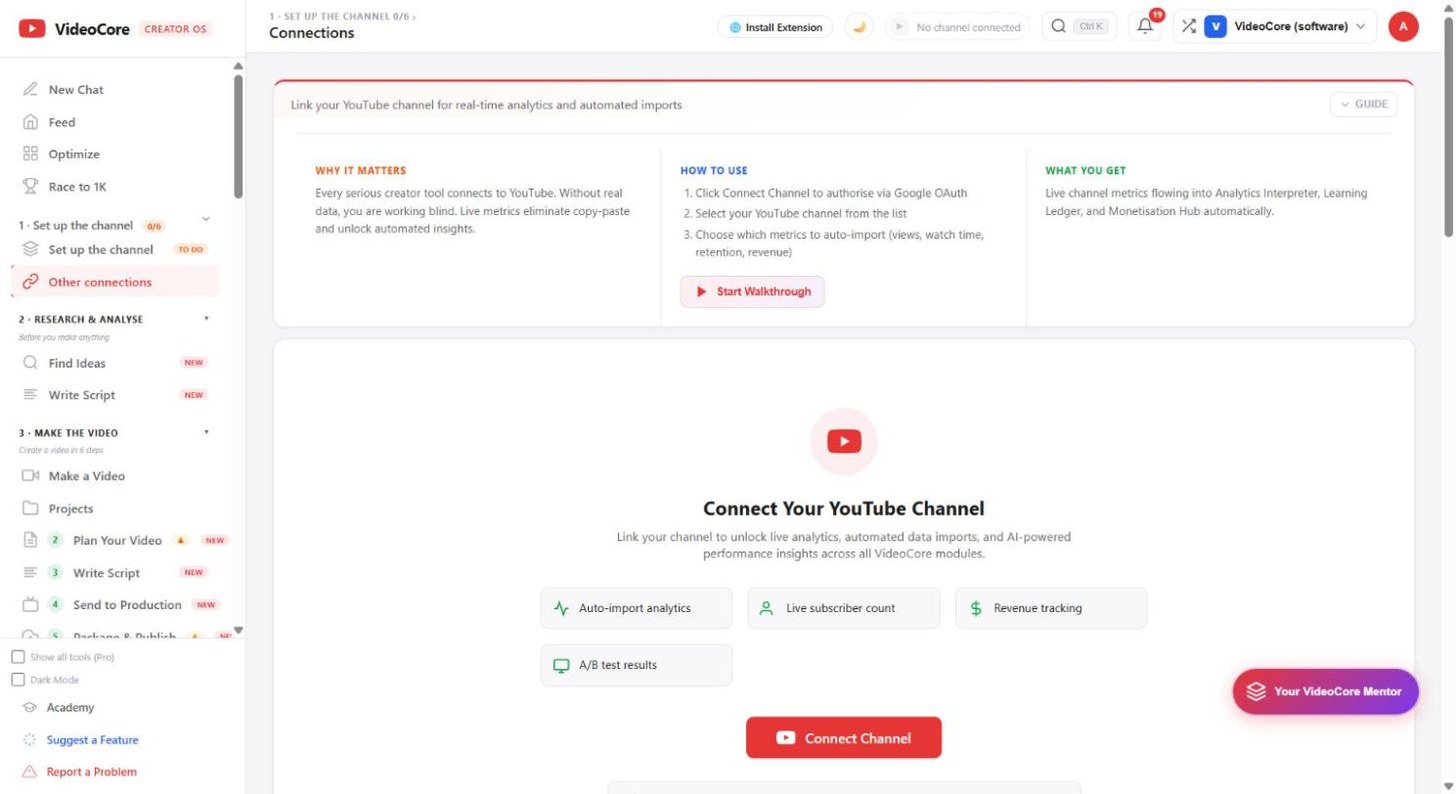
One Google consent, about twenty seconds, read-only until you say otherwise. A new account opens on this page and nothing else until a channel is connected; connecting starts your 14-day Pro trial and gives every tool your real numbers.
The connect wall
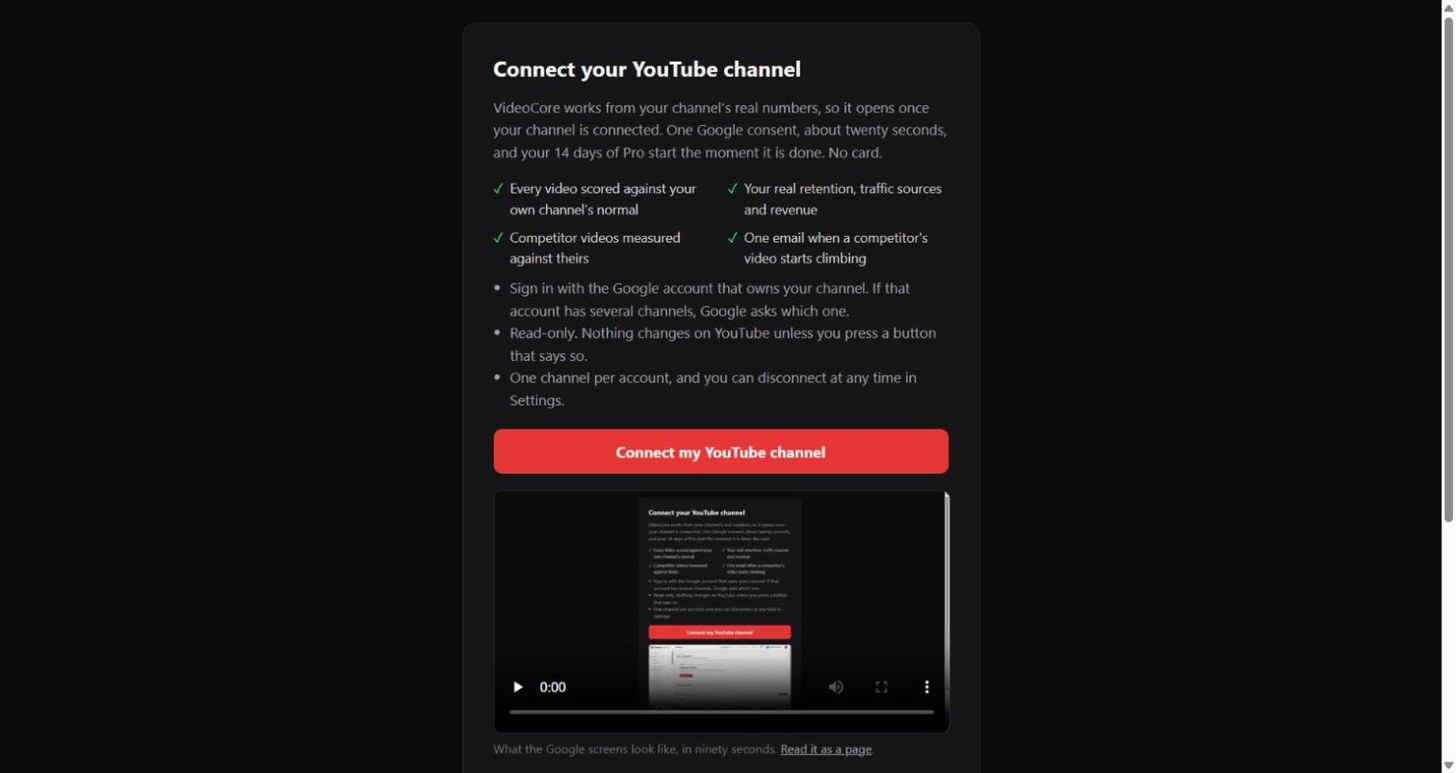
A new account lands here. The page says what connecting switches on, that it takes about twenty seconds and starts the trial with no card, and that Google asks which channel when an account has several. Press Connect my YouTube channel.
Google asks you to allow it
Google shows what VideoCore asks for: to see your YouTube analytics and to see and manage your YouTube account. Allow, then pick the channel if you have several. You land on Optimise with your 14 days of Pro started.
If the channel is already on another account
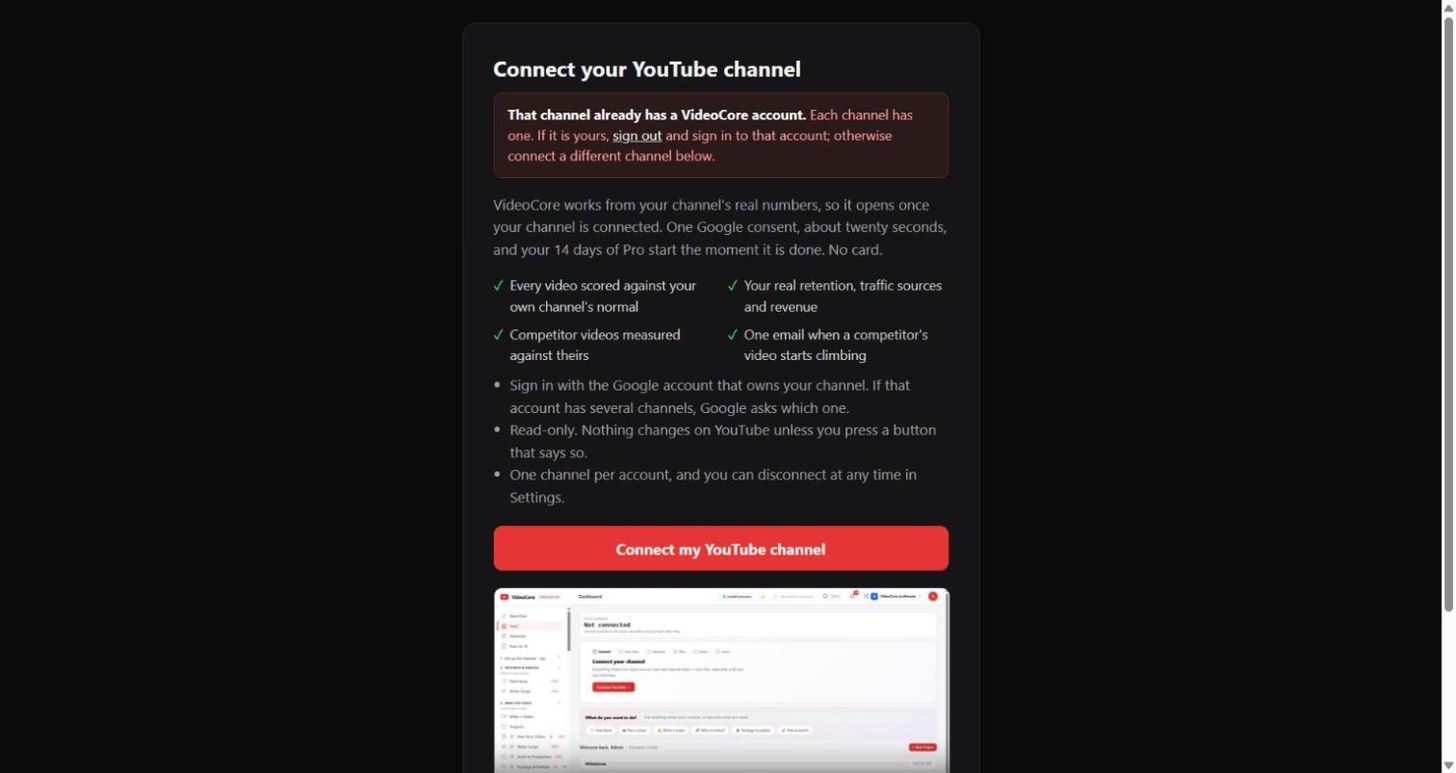
Each channel has one VideoCore account. If the one you picked is already connected elsewhere, the page says so at the top: sign out and sign in to that account, or connect a different channel. A Google account with no channel gets the same kind of note with a link to create one.
Lens at the door
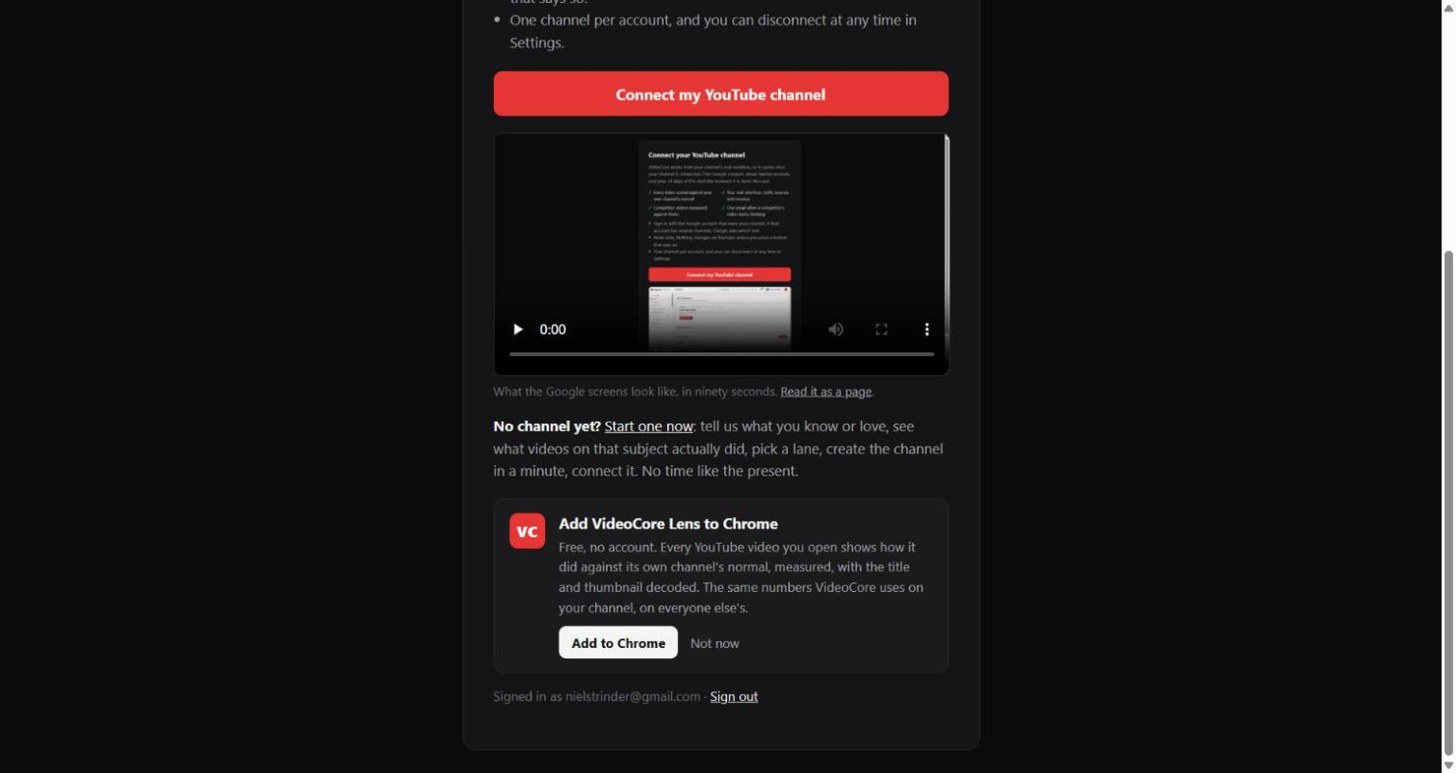
Under the connect button, a card offers the free Lens extension for Chrome: every YouTube video you open against its own channel's normal, no account needed. Add to Chrome opens the store in a new tab; Not now hides the card, and it hides itself when Lens is already installed. Nothing here blocks the connect.
Why it works this way
VideoCore writes to YouTube only when you press a button that says so; the connection itself is read-only.